> For the complete documentation index, see [llms.txt](https://docs.immedio.io/llms.txt). Markdown versions of documentation pages are available by appending `.md` to page URLs; this page is available as [Markdown](https://docs.immedio.io/immedio-forms/guides/form-creation/post-submit-actions.md).

# フォーム送信後のアクションを設定する

展示会での名刺読込み時やウェビナーのアンケート回答時に商談打診やお礼メールの送付などのアクションを設定することが可能です。

| 送付完了画面          | メッセージを表示             | Thanksページで表示する文言を設定することが出来ます                                                                                                                                                                                                                             |
| --------------- | -------------------- | -------------------------------------------------------------------------------------------------------------------------------------------------------------------------------------------------------------------------------------------------------- |
|                 | URLにリダイレクト           | 外部のURLに遷移させることが出来ます                                                                                                                                                                                                                                      |
| メール送付           | 受付メールを送付する           | フォーム送信時に受付メールを送付します                                                                                                                                                                                                                                      |
|                 | 送付元の名前               | メールの送信者として表示される社名・氏名                                                                                                                                                                                                                                     |
|                 | 送付元のメールアドレス          | お客様が返信を押した際に宛先に入るメールアドレス。メールが不達になった場合はこのアドレスに通知が届きます                                                                                                                                                                                                     |
|                 | BCCメールアドレス           | BCCに追加するメールアドレス。カンマで区切って複数指定することが可能です                                                                                                                                                                                                                    |
|                 | タイトル                 | メールタイトル                                                                                                                                                                                                                                                  |
|                 | 内容                   | <p>メール本文。\[name]でお客様の氏名、\[company]でお客様の会社名を挿入します。</p><p>文中にハイパーリンクを挿入する場合、該当文字列を選択して「URLに変換」をクリックして下さい。</p><p>また、文中に画像を挿入する場合、「画像を挿入」から画像または画像が入ったURLをアップロードして下さい。<br>（Windowsの改行コードが正しく反映されない場合があります。その場合には改行の代わりに\<br/>という文字列を入れて頂ければ改行される仕様になります）</p> |
| メール通知           | 通知を受信するメールアドレス       | 新規回答のメール通知を受け取りたい時に、メールアドレスを指定して下さい。                                                                                                                                                                                                                     |
| Slack通知         | 新規リードのSlack通知を受け取る   | フォーム送信時にSlackで通知を受け取ることが可能です                                                                                                                                                                                                                             |
|                 | 通知先チャンネルID           | 通知先のSlackチャンネルを指定して下さい                                                                                                                                                                                                                                   |
|                 | メンション先ユーザーID         | メンション先を設定することが可能です。設定しないことも可能です                                                                                                                                                                                                                          |
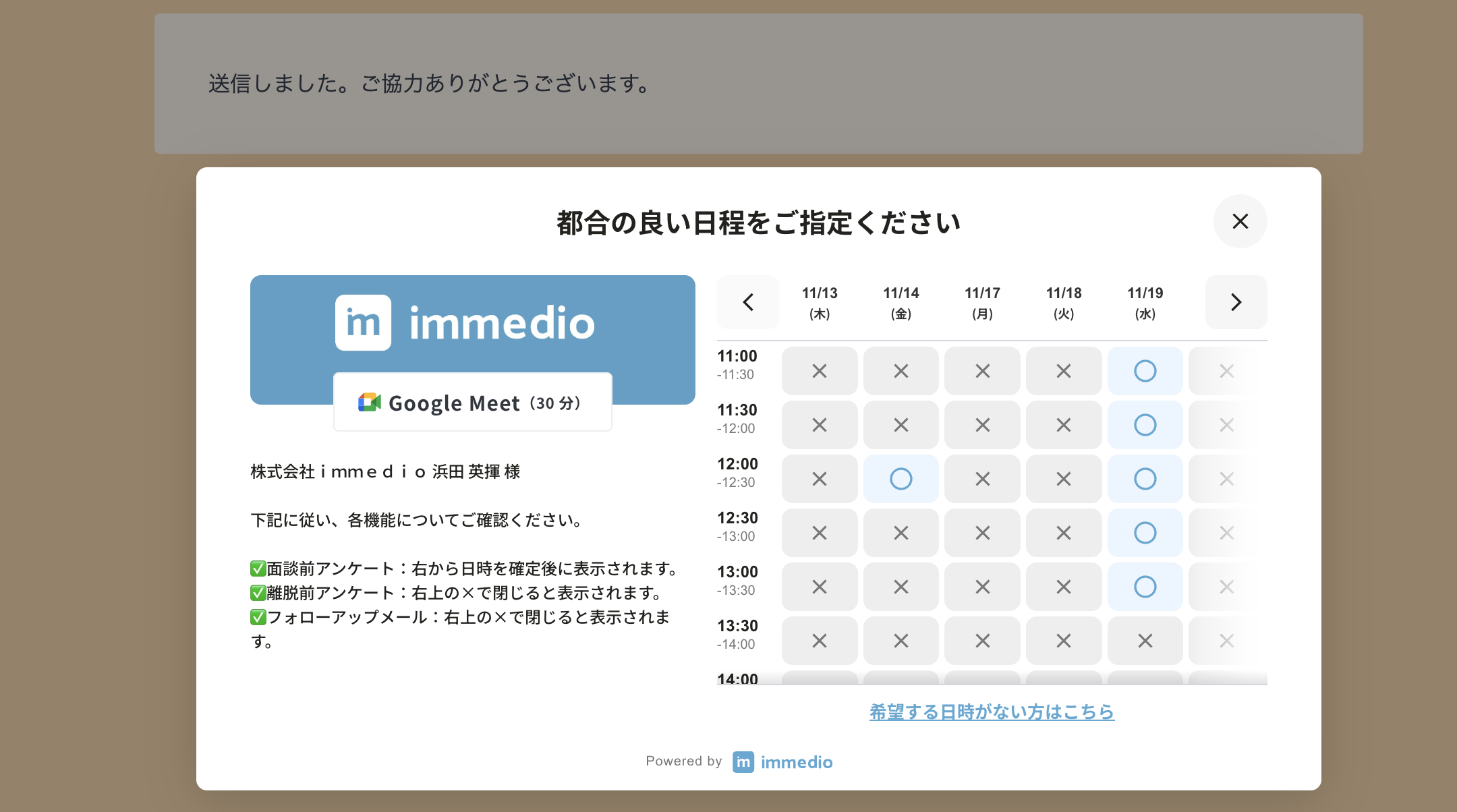
| immedio meeting | immedio meetingを表示する | 送信後の画面でimmedioの日程調整ポップアップを表示したい際にOnにします                                                                                                                                                                                                                  |
|                 | immedio.config       | "apiKey":"",の""の部分にimmedioのルーター一覧から取得したAPI Keyを入力して下さい                                                                                                                                                                                                   |

Thanksページでのimmedio表示例

<figure><img src="https://1692208878-files.gitbook.io/~/files/v0/b/gitbook-x-prod.appspot.com/o/spaces%2FvP51wq1pHb6dYs2kqpky%2Fuploads%2FbHVTfYn3RnJlpSUCIrfD%2F%E3%82%B9%E3%82%AF%E3%83%AA%E3%83%BC%E3%83%B3%E3%82%B7%E3%83%A7%E3%83%83%E3%83%88%202025-11-07%2015.20.26.png?alt=media&amp;token=bacc1702-0518-456b-bf02-59176b2e9992" alt=""><figcaption></figcaption></figure>


---

# Agent Instructions
This documentation is published with GitBook. GitBook is the documentation platform designed so that both humans and AI agents can read, navigate, and reason over technical content effectively. Learn more at gitbook.com.

## Querying This Documentation
If you need additional information that is not directly available in this page, you can query the documentation dynamically by asking a question.

Perform an HTTP GET request on the current page URL with the `ask` query parameter, and the optional `goal` query parameter:

```
GET https://docs.immedio.io/immedio-forms/guides/form-creation/post-submit-actions.md?ask=<question>&goal=<endgoal>
```

`ask` is the immediate question: it should be specific, self-contained, and written in natural language.
`goal` is optional and describes the broader end goal you are ultimately trying to accomplish on behalf of the user. GitBook uses it to tailor the answer towards what is most useful for that goal.

The response will contain a direct answer to the question and relevant excerpts and sources from the documentation.

Use this mechanism when the answer is not explicitly present in the current page, you need clarification or additional context, or you want to retrieve related documentation sections.