> For the complete documentation index, see [llms.txt](https://docs.immedio.io/llms.txt). Markdown versions of documentation pages are available by appending `.md` to page URLs; this page is available as [Markdown](https://docs.immedio.io/immedio-box/guides/room/digital-sales-room.md).
# ルームを介して顧客とファイルをやり取りする
顧客とファイルをやり取りする
ルームは複数のファイルを不特定多数の顧客に共有できる機能ですが、特定の顧客向けにルームを提供し、その中で双方(顧客と営業担当)からファイルをアップロードすることが可能です(専用ルーム機能)。案件が進む過程で顧客とファイルのやり取りが生じる場合などにお使い下さい。
### 専用ルームを作成・共有する
専用ルームを作成するに当たっては、まず元となるルームを作成します。その後、ルーム詳細メニューから「専用ルーム」を選択して下さい。
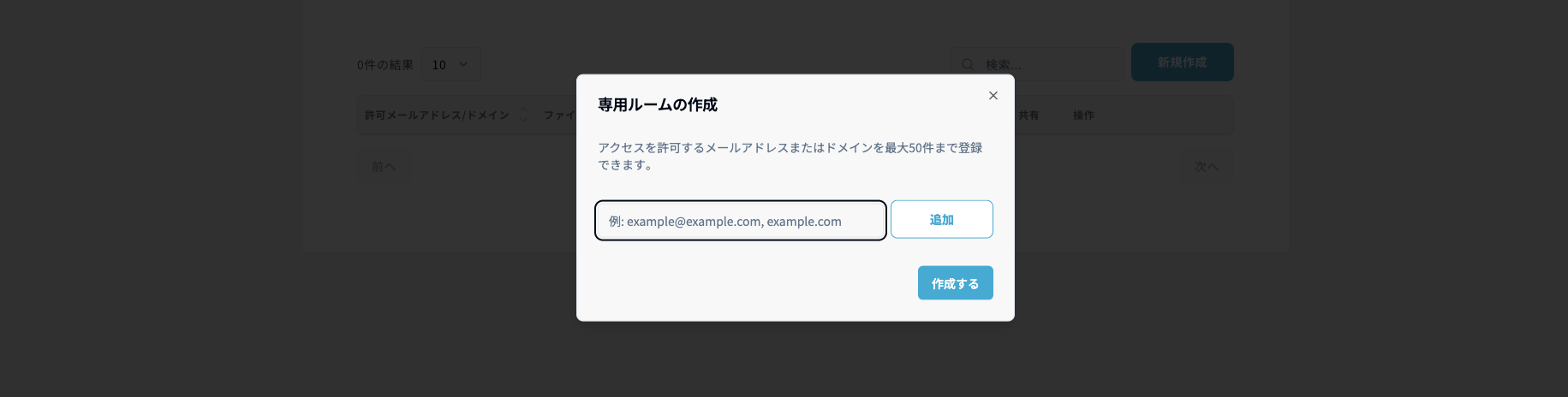
新規作成のボタンを押すと、顧客のメールアドレスやドメインを指定する画面が表示されるので、入力して下さい(カンマ区切りで50件まで入力可能)
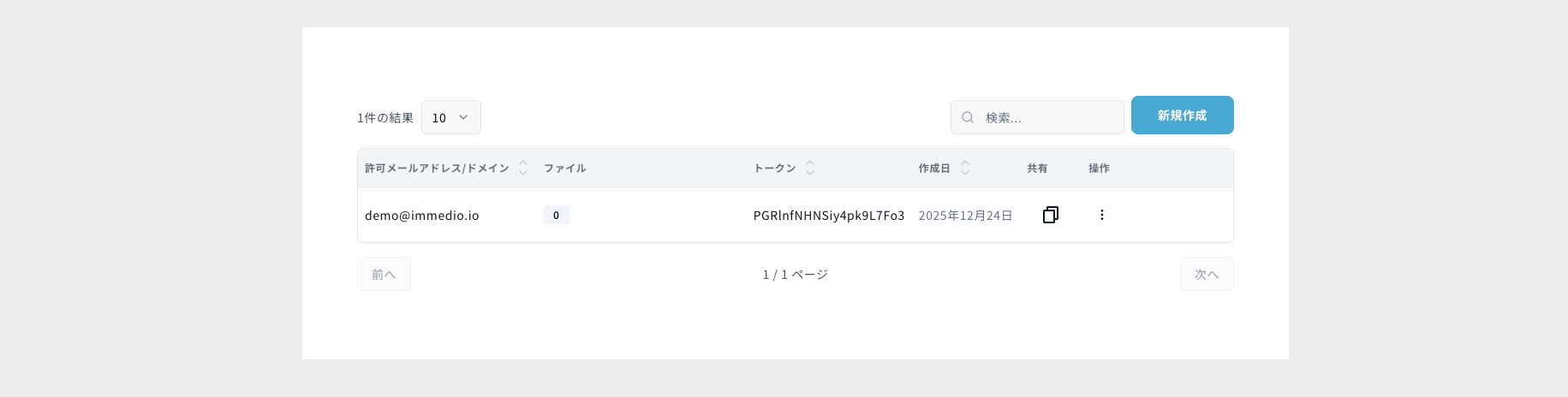
「作成する」を押すと共有用のURLが生成されるので、コピーして顧客に送付して下さい。
### (顧客側)専用ルームを閲覧する
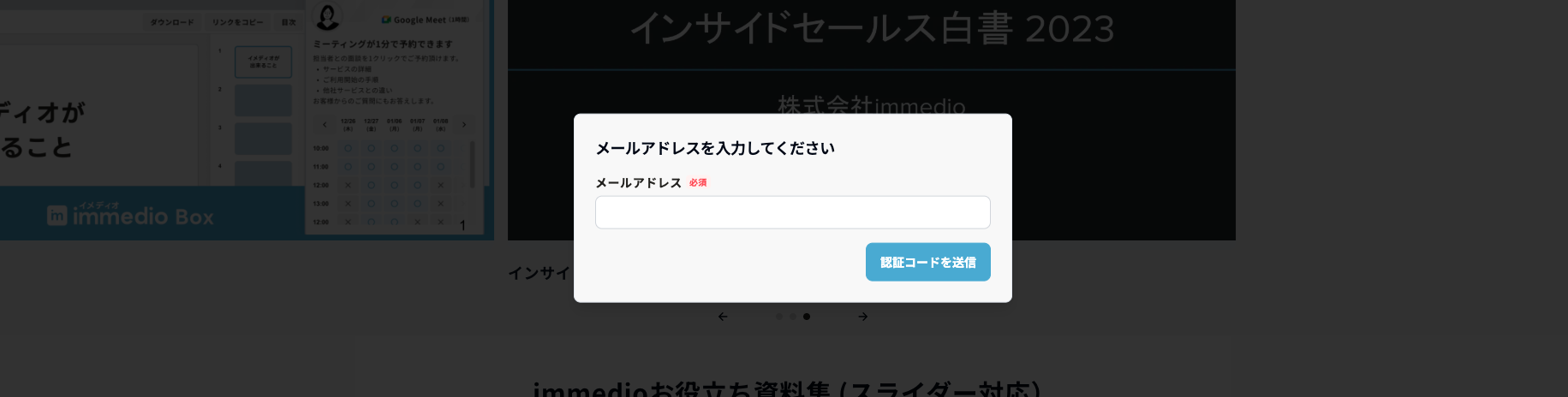
専用ルームはデフォルトでメールアドレス認証(ワンタイムパスワード)がOnになっています。ファイル共有機能が備わっていることから、セキュリティ対策のための仕様です。
メールに届いたパスワードを入力するとルームにアクセスできますが、コンテンツの横に「ファイル共有」というタブがあり、ここからファイルをアップロードすることが可能です。アップロードできるファイルはimmedio Boxで対応しているファイルタイプと同様ですが、動画とURLは含みません。
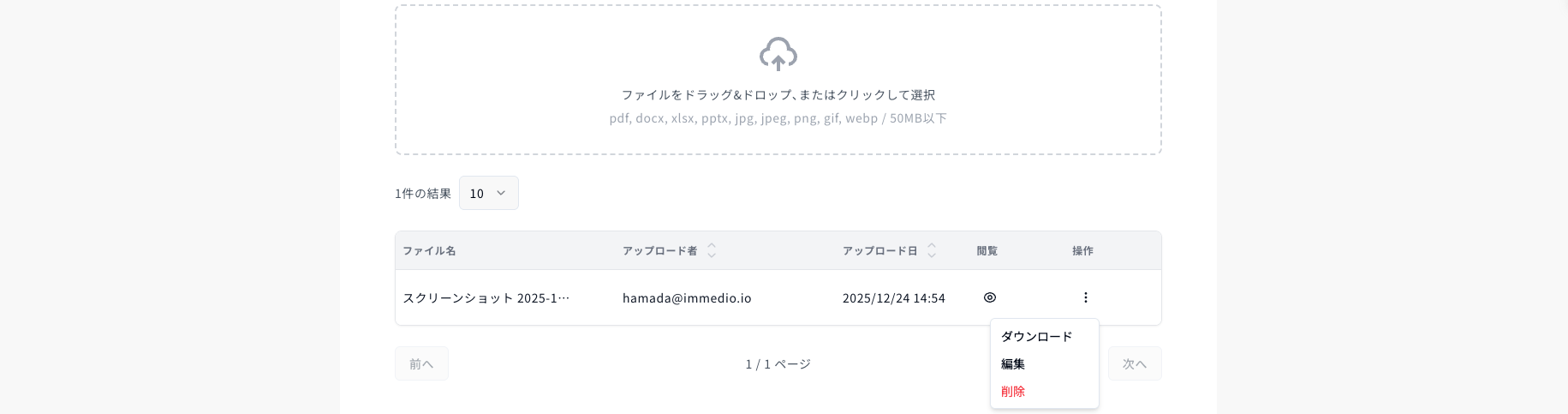
ファイルをアップロードすると下のファイル一覧に表示され、編集・削除・ダウンロードが可能です。
### アップロードされたファイルを確認する
ファイルアップロード時に通知を受け取りたい際は、ワークフローの「専用ルームのファイルアップロード」トリガーに対してアクションを設定して下さい。
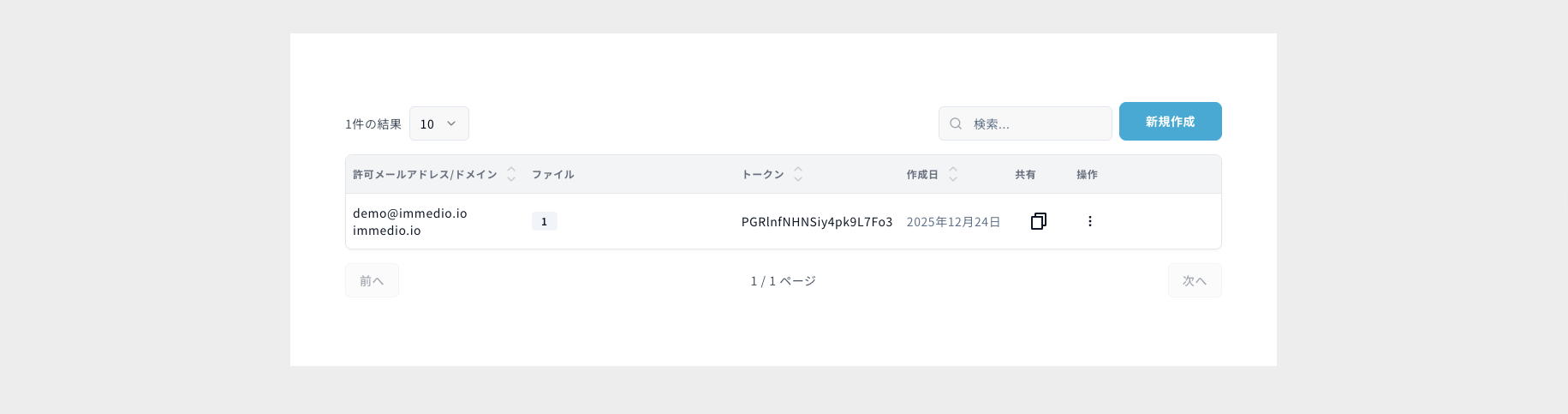
管理画面からアップロードしたファイルにアクセスする場合、専用ルーム管理画面で、該当の専用ルームの横に表示された数字をクリックすることで遷移できます。
---
# Agent Instructions
This documentation is published with GitBook. GitBook is the documentation platform designed so that both humans and AI agents can read, navigate, and reason over technical content effectively. Learn more at gitbook.com.
## Querying This Documentation
If you need additional information that is not directly available in this page, you can query the documentation dynamically by asking a question.
Perform an HTTP GET request on the current page URL with the `ask` query parameter, and the optional `goal` query parameter:
```
GET https://docs.immedio.io/immedio-box/guides/room/digital-sales-room.md?ask=&goal=
```
`ask` is the immediate question: it should be specific, self-contained, and written in natural language.
`goal` is optional and describes the broader end goal you are ultimately trying to accomplish on behalf of the user. GitBook uses it to tailor the answer towards what is most useful for that goal.
The response will contain a direct answer to the question and relevant excerpts and sources from the documentation.
Use this mechanism when the answer is not explicitly present in the current page, you need clarification or additional context, or you want to retrieve related documentation sections.