> For the complete documentation index, see [llms.txt](https://docs.immedio.io/llms.txt). Markdown versions of documentation pages are available by appending `.md` to page URLs; this page is available as [Markdown](https://docs.immedio.io/immedio-box/guides/room/creating-rooms.md).

# ルーム機能を使って、複数のファイルを展開する

展開ファイル

immedio Boxでは、アップロードした複数のファイルを一括して展開することが可能です。ルーム機能を使ってユーザーへアプローチできます。本ページでは、その手順を説明します。

### 1. ルームの作成 <a href="#h_01jnczmbh6vxmyv2hhx61qm0aq" id="h_01jnczmbh6vxmyv2hhx61qm0aq"></a>

ルームを作成する際は、ルーム管理から右上の「ルーム作成」をクリックして下さい。

### 2. 情報を登録する <a href="#h_01jnd0188peefkd781fbrw1fav" id="h_01jnd0188peefkd781fbrw1fav"></a>

| **機能名**   | **説明**                                                                                                 |
| --------- | ------------------------------------------------------------------------------------------------------ |
| ルーム名      | ルームの名前を設定できます                                                                                          |
| 説明文       | ルームの説明テキストを設定できます                                                                                      |
| ドメイン      | 事前に登録した独自ドメインがある場合、こちらで選択できます                                                                          |
| 表示名       | 顧客に表示されるルームのタイトル                                                                                       |
| URLカスタマイズ | <p>URLの末尾に来る文字列を指定できます。使える文字列は、「半角英数字」とハイフン「-」のみになります</p><p>また、ドメイン設定が完了している場合は独自のドメインを指定することも可能です</p> |
| 資料名・補足の表示 | 各資料のサムネイルの下に、資料名や補足（各資料のOGPに設定した説明文）を表示するかどうかを「表示しない」「資料名のみ表示」「資料名と補足を表示」から選べます                        |
| オーナー      | ルームの開封や離脱時に主に通知を受け取るオーナーが指定できます。デフォルトではルームの作成者がオーナーになります                                               |

各項目の詳細な制約（文字数・画像サイズなど）は[ルーム（基本設定）](/immedio-box/rooms/detail/settings.md)を参照して下さい。

### 3. メインコンテンツ（資料・CTA）を登録する <a href="#h_01jnd021tga9516qcntwh6csde" id="h_01jnd021tga9516qcntwh6csde"></a>

ルームに表示する資料やCTAボタンは、「メインコンテンツを編集」ボタンから開くエディタで登録します。「カテゴリ」ブロックを追加してカテゴリー名を設定し、資料を紐づけることで、複数のカテゴリーに分けてファイルを掲載できます。カテゴリー内の資料の順番はドラッグアンドドロップで変更できます。外部サイトへ誘導する「CTA」ブロックも同じエディタから追加できます。

エディタの詳しい使い方や各ブロックの設定は、[ルーム（基本設定）のメインコンテンツ](/immedio-box/rooms/detail/settings.md#main-content)を参照して下さい。

### 4. カバー画像またはスライダーを追加する <a href="#h_01jnd0smfjz8an5x7mexantepb" id="h_01jnd0smfjz8an5x7mexantepb"></a>

カバー画像とロゴは設定しなくても利用は可能ですが、よりリッチなコンテンツにするには設定をお勧めしています。

#### カバー画像 (推奨サイズ:1536px 570px)

画像フォーマット: webp、png、jpg／容量:1MB以下

#### ロゴ (推奨サイズ:400px 400px)

画像フォーマット: webp、png、jpg／容量:200KB以下

<figure><img src="https://1651914056-files.gitbook.io/~/files/v0/b/gitbook-x-prod.appspot.com/o/spaces%2FtOQlwhpKM7bIgwFXZt5n%2Fuploads%2FZAx2mx5AvfZwP2T8V82S%2Fimage.png?alt=media&amp;token=744a8efd-74a0-4418-955f-4192c238362c" alt=""><figcaption></figcaption></figure>

カバー画像の代わりに複数の資料をスライダー形式で表示することが可能です。その際はタブからスライダーを選び、スライダーに表示したい資料を選んで下さい。画像は5秒毎に左に回転します。

### 5. OGPを設定する <a href="#id-01jv5sjf5khgk1362ybt16vsty" id="id-01jv5sjf5khgk1362ybt16vsty"></a>

ルームのURLをネット上で共有した際に、任意のタイトル、説明文、画像を表示する設定が可能です。任意のOGPタイトル、ディスクリプション、画像を設定して下さい。

### 6. プレビュー画面と保存 <a href="#id-01jv5sjf5khgk1362ybt16vsty" id="id-01jv5sjf5khgk1362ybt16vsty"></a>

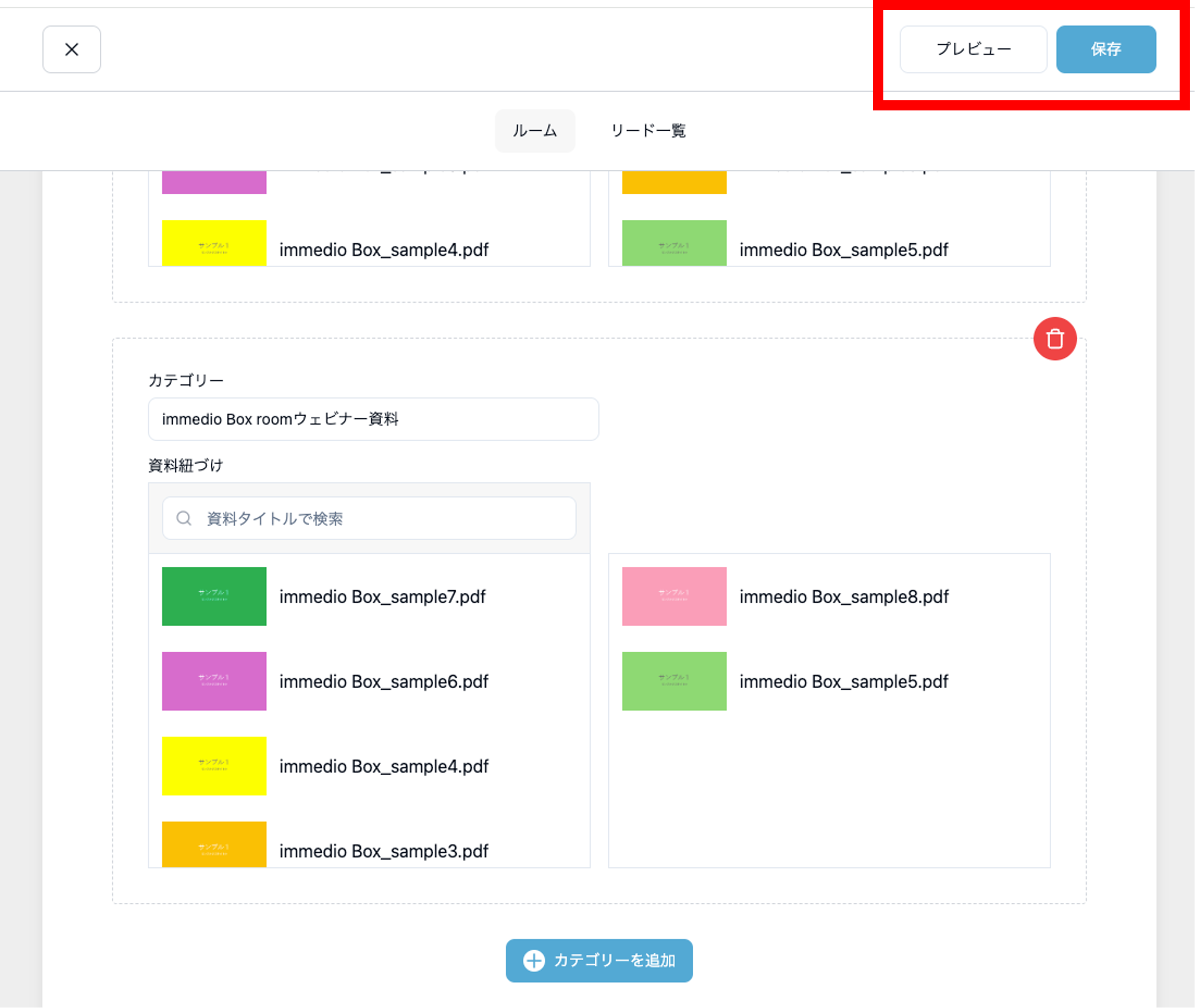
ルームを作成し、一度「保存」ボタンをクリックすると画面右上の「プレビュー」ボタンが表示されます。「プレビュー画面を」クリックするとプレビュー画面で確認できます。

また、保存後に編集した場合は再度「保存」を押すと更新が完了します。

<figure><img src="https://1651914056-files.gitbook.io/~/files/v0/b/gitbook-x-prod.appspot.com/o/spaces%2FtOQlwhpKM7bIgwFXZt5n%2Fuploads%2FTNEZed3t5mcETI67zyhp%2Fimage.png?alt=media&amp;token=ffbb1348-9e18-4763-b6f1-d4f9882bdd76" alt=""><figcaption></figcaption></figure>


---

# Agent Instructions
This documentation is published with GitBook. GitBook is the documentation platform designed so that both humans and AI agents can read, navigate, and reason over technical content effectively. Learn more at gitbook.com.

## Querying This Documentation
If you need additional information that is not directly available in this page, you can query the documentation dynamically by asking a question.

Perform an HTTP GET request on the current page URL with the `ask` query parameter, and the optional `goal` query parameter:

```
GET https://docs.immedio.io/immedio-box/guides/room/creating-rooms.md?ask=<question>&goal=<endgoal>
```

`ask` is the immediate question: it should be specific, self-contained, and written in natural language.
`goal` is optional and describes the broader end goal you are ultimately trying to accomplish on behalf of the user. GitBook uses it to tailor the answer towards what is most useful for that goal.

The response will contain a direct answer to the question and relevant excerpts and sources from the documentation.

Use this mechanism when the answer is not explicitly present in the current page, you need clarification or additional context, or you want to retrieve related documentation sections.