> For the complete documentation index, see [llms.txt](https://docs.immedio.io/llms.txt). Markdown versions of documentation pages are available by appending `.md` to page URLs; this page is available as [Markdown](https://docs.immedio.io/immedio-box/guides/gtm-use-cases.md).
# GTM連携の活用例
immedio BoxとGoogle Tag Manager(GTM)を連携すると、immedio Boxの**公開ページ**(公開したファイル・ルーム)にGTMコンテナが読み込まれ、GTM上で設定した任意のタグを発火させることができます。
タグの管理をGTMに集約できるため、Google Analyticsをはじめとする各種計測・マーケティングツールを、immedio Box側の設定を変更せずに追加・変更できます。
GTM IDの設定方法など画面項目の詳細は[GTM連携設定](/immedio-box/integrations/gtm.md)を参照してください。
## 活用事例
GTM連携を有効にしたあと、GTM管理画面でタグを設定することで、以下のような活用ができます。
### Google Analytics(GA4)でファイル・ルームの閲覧を計測する
GTM経由でGoogle Analytics 4(GA4)のタグを設定すると、公開したファイル・ルームの閲覧をGA4で計測し、自社のアクセス解析基盤に閲覧データを集約できます。
#### 1. GA4でウェブストリームを作成する
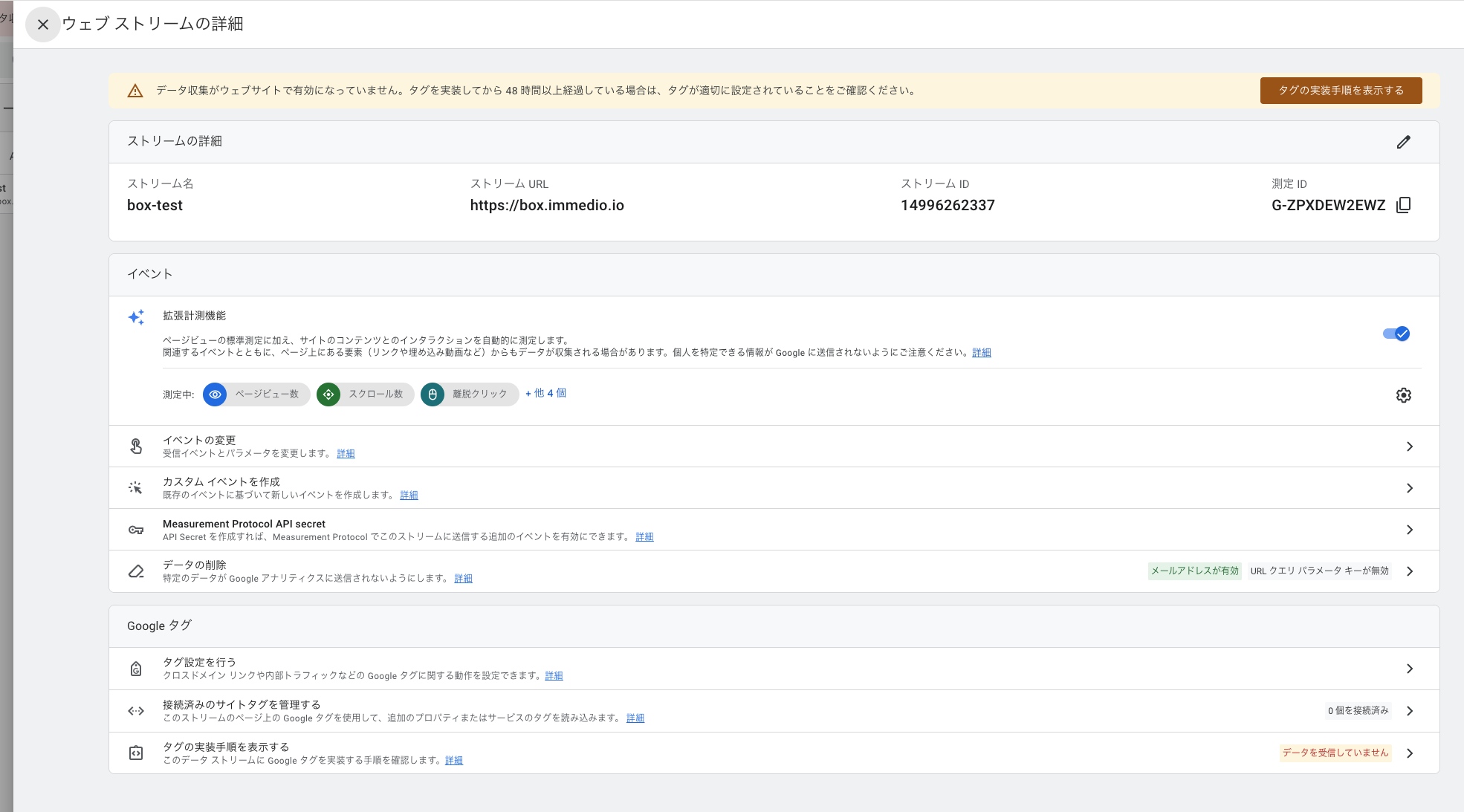
Google Analyticsで対象のGA4プロパティを開き、ウェブのデータストリームを作成します。作成後にストリームの詳細画面で表示される**測定ID**(`G-` で始まるID)を控えます。
GA4のウェブストリーム詳細。測定IDを控える
#### 2. GTMで測定IDを設定したGoogleタグを作成する
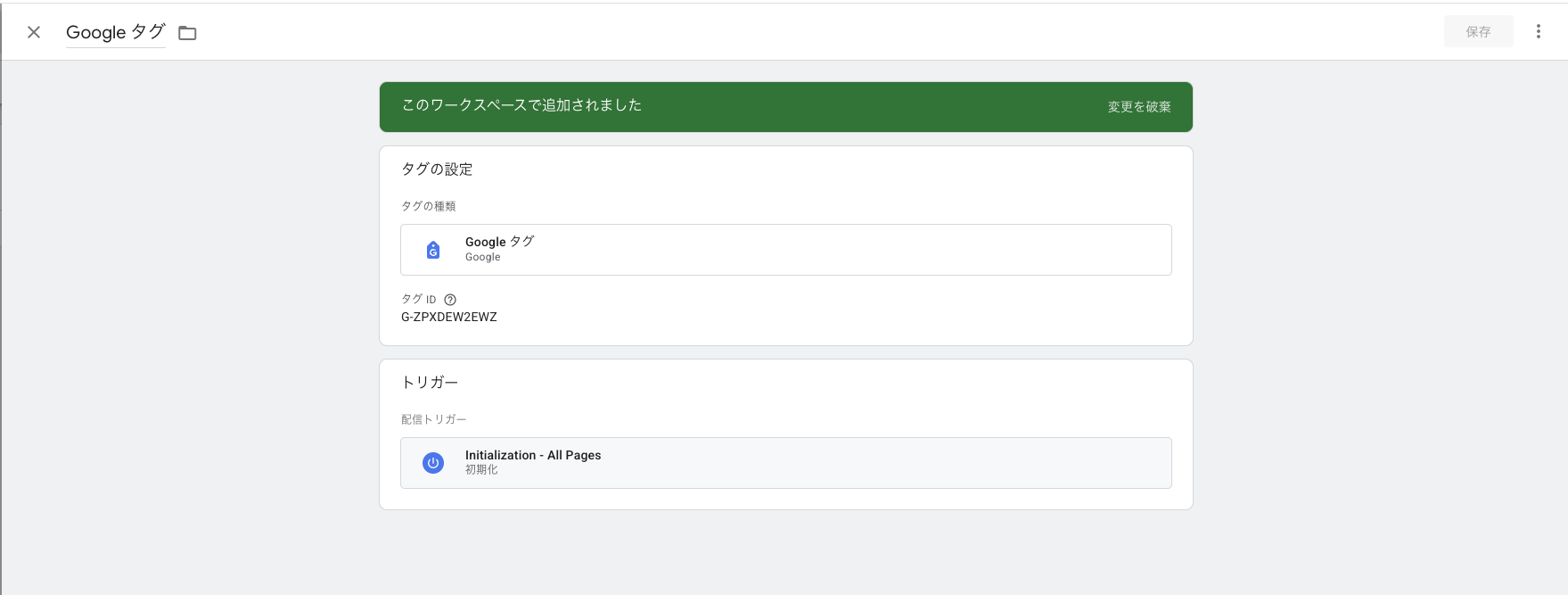
GTM管理画面で「タグ」→「新規」を選択し、タグタイプで「**Googleタグ**」を選んで、タグIDに手順1の測定ID(`G-XXXXXXX`)を入力します。トリガーは自動的に「Initialization - All Pages(初期化)」が設定されるため、変更は不要です。
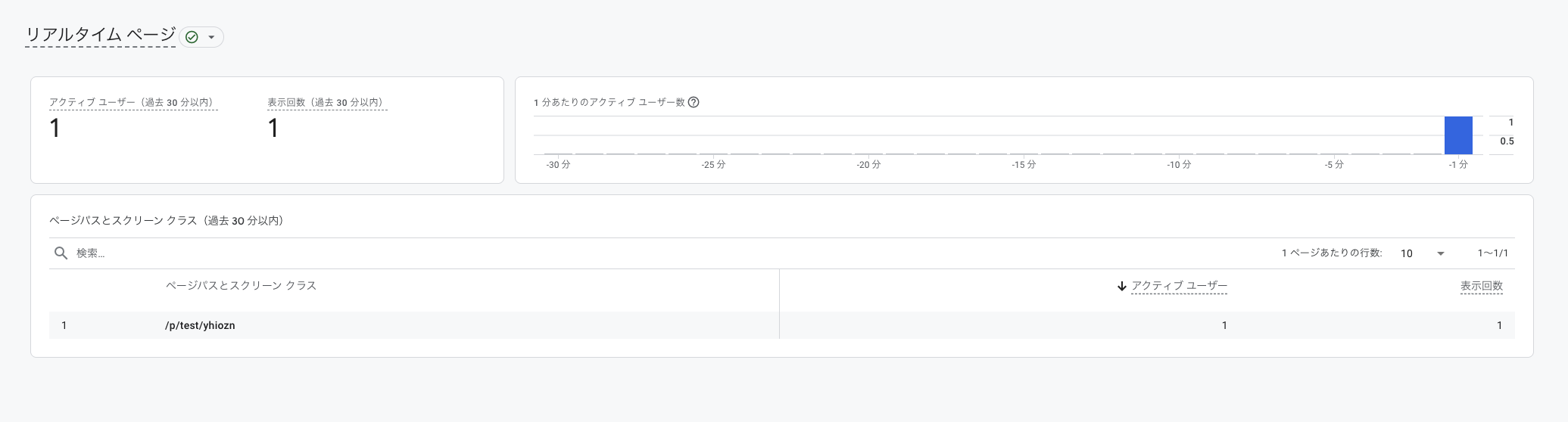
集計の反映は、リアルタイムレポートはアクセスから数分以内、通常レポート(探索・標準レポート)は翌日以降が目安です。
{% hint style="info" %}
immedio Boxにもファイル・ルームの閲覧状況を分析する機能があります。リード単位・企業単位での閲覧分析については[閲覧状況の分析](/immedio-box/guides/analytics.md)を参照してください。GA4連携は、自社で利用している計測基盤に閲覧データを集約したい場合に有効です。
{% endhint %}
### その他のタグを発火させる
広告のコンバージョンタグやヒートマップなど、GTMで管理しているタグも同様にトリガーを設定することで公開ページで発火できます。
---
# Agent Instructions
This documentation is published with GitBook. GitBook is the documentation platform designed so that both humans and AI agents can read, navigate, and reason over technical content effectively. Learn more at gitbook.com.
## Querying This Documentation
If you need additional information that is not directly available in this page, you can query the documentation dynamically by asking a question.
Perform an HTTP GET request on the current page URL with the `ask` query parameter, and the optional `goal` query parameter:
```
GET https://docs.immedio.io/immedio-box/guides/gtm-use-cases.md?ask=&goal=
```
`ask` is the immediate question: it should be specific, self-contained, and written in natural language.
`goal` is optional and describes the broader end goal you are ultimately trying to accomplish on behalf of the user. GitBook uses it to tailor the answer towards what is most useful for that goal.
The response will contain a direct answer to the question and relevant excerpts and sources from the documentation.
Use this mechanism when the answer is not explicitly present in the current page, you need clarification or additional context, or you want to retrieve related documentation sections.